Forge Trackball
Welcome to the Official Forge Trackball guide. You can select the links below to navigate to the topics that you find most relevant.
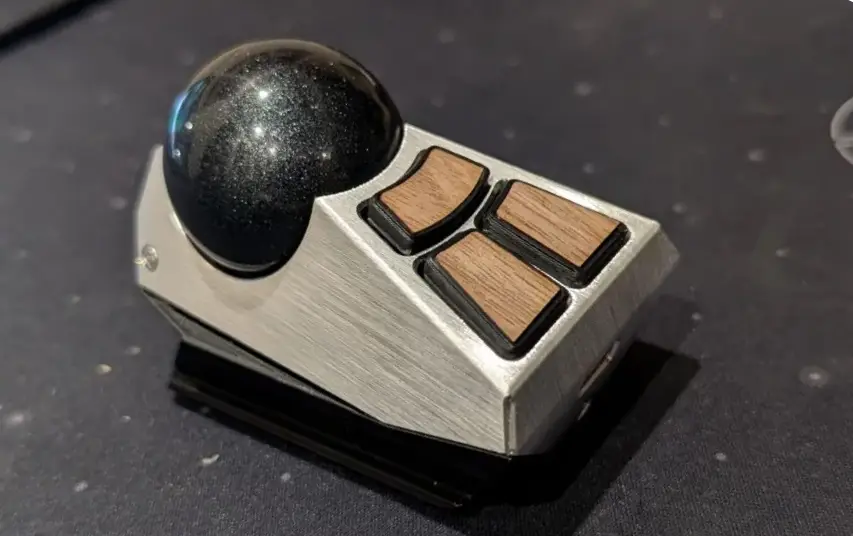
What began as a modular bolt-on accessory for the Master Forge has evolved into a standalone, precision optical pointing device: the Forge Trackball. Powered by its own independent instance of CharaChorder Operating System (CCOS), the Forge Trackball features a symmetrical, reversible brushed-aluminum exoskeleton designed for either fingertip or thumb control with your left or right hand. You can use it as an independent wired USB-C desktop trackball on any computer, bolt it directly onto any slotted bookend rail on your Master Forge, or even use it as a structural bridge connecting two Forge modules together.
Click here to skip to the Getting Started Guide.
Out of the Box
Parts

When you first receive your Forge Trackball, it will come packaged with everything needed to get started either on your desktop or mounted to your Forge rig:
One (1) Forge Trackball Module (with pre-installed static steel bearings and Omron mechanical switches)
One (1) 34 mm Optical Trackball
One (1) Braided USB Connection Cable (C to C)
Component / Metric |
Specification |
|---|---|
Package Contents |
Forge Trackball module, 34 mm trackball, USB connection cable |
Module Dimensions (L × W × H) |
|
Module Weight (with / without ball) |
|
Trackball Diameter |
34 mm |
Exoskeleton Material & Finish |
Aluminum 5052, brushed finish |
Endoskeleton Material |
3D-printed PLA |
Base Grips |
Round, rubberized non-slip feet (same as Master Forge & CC2) |
Bearings |
Static steel bearings |
Optical Sensor |
PixArt PAW3805EK-CJV3 (850 nm Infrared LED with L029-LSI lens) |
Resolution (CPI / DPI) |
Up to 3,000 CPI in ~26 CPI steps (Default: ~1,000 CPI; standard presets: 800–3,000 CPI) |
Tracking Speed & Acceleration |
Up to 40 IPS (Inches Per Second) / Up to 10 g acceleration |
Buttons & Switches |
3 programmable buttons with clicky Omron switches (20M-cycle rating) |
Scrolling Mechanism |
Ball scrolling (no external scroll wheel required) |
Connectivity |
Wired USB-C (USB HID plug-and-play) |
The Body (Exoskeleton and Endoskeleton)
Like the Master Forge digitizers, the Forge Trackball is constructed from a 3D-printed PLA endoskeleton housed inside a machined Aluminum 5052 exoskeleton with a brushed finish.
The module’s cut-face housing is completely symmetrical and reversible. This geometry allows you to orient the Forge Trackball for either fingertip control or thumb control, and makes it equally comfortable for left-handed and right-handed users.
On the underside of the module, you’ll find the same round, rubberized feet used across CharaChorder’s other hardware products (Master Forge and CharaChorder Two), providing a stable, non-slip grip on desks and smooth surfaces when used as a standalone device. The bottom of the housing also includes set screws that allow the module to attach directly to Master Forge slotted bookend rails.
Warning
IMPORTANT: Do Not Open the Exoskeleton. Internal components of the Forge Trackball are not user-serviceable, and opening the Aluminum 5052 exoskeleton will void your manufacturer warranty. Because the exoskeleton shell is formed using tight precision folds, folding and unfolding the shell multiple times can fatigue and break the metal seams.
The Trackball and Bearings
The Forge Trackball uses a 34 mm third-party trackball finished with a patterned surface and a high-gloss, low-friction coating. The fine surface pattern provides high-contrast visual reference points for the internal infrared optical sensor, while the gloss low-friction finish ensures a smooth, effortless glide under your thumb or fingertips.
Inside the bearing cup, the 34 mm ball rests on static steel bearings. In everyday use, static steel bearings offer three key benefits:
Low Rattle: Eliminates the mechanical chatter and play common in moving multi-ball roller cages.
Minimal Space: Keeps the overall module footprint compact and low-profile so it aligns cleanly with your Forge digitizers.
Long-Term Durability: With no miniature moving sub-bearings to jam or wear down, static steel contact points resist dust buildup and maintain consistent glide performance over years of daily use.
The ball is held securely in the socket by pocket geometry—it pops in and out cleanly by hand whenever you need to clean the bearing cup, yet remains seated during normal use.
The Optical Sensor
At the heart of the Forge Trackball is the PixArt PAW3805EK-CJV3 optical navigation chip paired with a companion L029-LSI trim lens and an integrated 850 nm infrared (IR) LED light source. Specifically engineered for trackball applications and glossy spherical surfaces, the sensor captures sequential surface frames and outputs 16-bit X and Y motion data for high-precision cursor control.
Sensor Parameter |
Specification |
What It Means in Everyday Use |
|---|---|---|
Optical Sensor Model |
PixArt PAW3805EK-CJV3 (with L029-LSI lens) |
Dedicated infrared (850 nm) trackball optical sensor engineered to track glossy spherical surfaces with high accuracy. |
Resolution (DPI / CPI) |
Up to 3,000 CPI in ~26 CPI steps (Hardware default: ~1,000 CPI; common tiers: 800, 1000, 1200, 1600, 2000, 2400, 3000 CPI) |
Controls how far your cursor moves on screen per inch of physical ball rotation. Supports independent X-axis ( |
On-the-Fly DPI Switching |
Supported |
Lets you adjust cursor sensitivity on the fly directly from the hardware without opening software. |
Tracking Speed |
Up to 40 IPS (Inches Per Second) |
The maximum physical spin speed the sensor can track without skipping. On a 34 mm ball (~4.2 in circumference), 40 IPS equals nearly 10 full ball rotations per second, ensuring fast flicks in gaming or multi-monitor navigation register cleanly. |
Tracking Acceleration |
Up to 10 g |
Handles sudden, rapid flicks from a dead stop up to 10 times the force of gravity without losing 1:1 cursor tracking. |
Motion Data & Polling |
16-bit X/Y motion reporting (USB polling rate configurable via CCOS) |
High-resolution 16-bit movement registers with hardware interrupt ( |
Lift-Off / Tracking Distance |
2.25 – 2.55 mm (2.4 mm typical lens-to-ball gap) |
The trackball is calibrated to track only when the 34 mm ball is seated in the bearing cup and is not intended to function when the ball is lifted off of the device. |
Understanding DPI / CPI: How Display Resolution (1080p vs. 4K) Affects Cursor Speed
DPI (Dots Per Inch)—also referred to as CPI (Counts Per Inch) in optical sensor specifications—determines how far your cursor moves on the screen in response to physical movement of your mouse or trackball. Higher DPI means faster cursor movement with less finger motion, while lower DPI provides slower, more precise control.
A 4K display (3840 × 2160) has four times as many total pixels as a 1080p display (1920 × 1080), with twice as many pixels in each direction. This means that at the same DPI setting, your cursor travels the exact same number of pixels, but covers only half the percentage of the screen’s width or height on a 4K display.
For example, if a particular trackball movement moves your cursor 500 pixels:
Display Resolution |
Screen Dimensions |
Distance Covered by a 500-Pixel Move |
|---|---|---|
1080p (Full HD) |
1920 × 1080 pixels |
Travels about 26% of the screen’s width |
4K (Ultra HD) |
3840 × 2160 pixels |
Travels about 13% of the screen’s width |
In simple terms: A 4K display may make your cursor feel slower because it has more pixels to travel across. Doubling your DPI (for example, from 800 CPI to 1600 CPI, or from 1200 CPI to 2400 CPI) can restore approximately the same relative cursor speed you experienced on a 1080p display, assuming your operating system’s pointer speed and acceleration settings remain unchanged.
Ergonomics, Mounting & Physical Configurations
Ambidextrous & Multi-Grip Design
Because the Forge Trackball is symmetrical and reversible, it adapts to your preferred grip style and hand dominance:
Fingertip Control vs. Thumb Control: The cut-face body is designed to be reversible—position it one way to roll the ball with your fingertips, or rotate it 180° for thumb-driven control.
Left-Handed & Right-Handed Use: The symmetrical housing works identically on either the left or right side of your setup, or in a dual-trackball configuration with one under each hand.
Programmable Axis Orientation: Using the PAW3805EK-CJV3 sensor’s onboard orientation controls (
MOVXY_SW,MOVX_INV, andMOVY_INV), orientation is programmable for any setup. Whether you mount the trackball rotated 90°, flipped 180°, or angled on a rail, you can invert or swap the X and Y axes so cursor direction always matches your physical orientation.
Master Forge Rail Mounting
If you own a Master Forge, the Forge Trackball integrates directly into the Forge rail ecosystem:
Bottom Set Screws: Set screws on the underside of the Forge Trackball allow it to attach securely to the slotted bookend rails on the Master Forge (
M4G).Universal Rail Compatibility: The Forge Trackball can attach to any rail on the Master Forge—including outboard right, outboard left, front/rear shoulders, or center positions.
Structural Bridge Capability: In addition to outer rail mounting, the Forge Trackball can act as a structural bridge/connector between two other Forge modules, physically joining two digitizers or anchor bodies together.
Angle & Tilt Adjustments
Neutral or Tilted Posture: The Forge Trackball can sit at either a neutral flat angle on your desk or an ergonomic tilt.
Ergo Bolt-On Integration: It integrates directly with the Master Forge Ergo Bolt-On so your trackball angle aligns with your digitizers.
Connections
Standalone Desktop Connection
Because the Forge Trackball runs its own firmware, you can plug it directly into a host PC or laptop via standard USB-C without owning a Master Forge.
Cable Compatibility: Supports both standard USB-C to USB-A and USB-C to USB-C data cables.
Recommended Cable Length: Any data-capable cable length under 10 feet (10’) is recommended.
Wired Connection: The Forge Trackball is a wired USB-C device and does not use wireless or Bluetooth connectivity.
Master Forge Integration
When connecting the Forge Trackball directly to a Master Forge digitizer:
Port Selection: As noted in the Master Forge Getting Started section, the front-left shoulder USB-C port on the Master digitizer is reserved for receiving host power from your computer. The Forge Trackball can plug into any of the 3 remaining input/expansion USB-C ports on the Master Forge digitizer (the front-right shoulder port or either of the two ports inside the underside cavity).
Power Delivery: The Forge Trackball receives power directly from the connected Master Forge without requiring an external powered USB hub.
Under-Body Cable Routing: Route and tuck excess cable through the back port into the hollow underside cavity of the Master Forge for a clean, clutter-free desk setup.
Getting Started
Plugging In
The Forge Trackball is 100% plug-and-play as a standard USB HID pointing device and does not require any third-party drivers to operate.
Operating System Compatibility: The Forge Trackball works on all modern versions of Windows, macOS, and Linux—any computer that supports a standard USB HID mouse.
Mobile Compatibility: The Trackball was not designed for mobile use (such as iOS, iPadOS, or Android) and has not been tested with mobile devices.
Once you have connected your Forge Trackball to your computer (or into one of the three available ports on your Master Forge), you can immediately begin moving the cursor, clicking with the 3 Omron buttons, and scrolling with the ball.
Setting Up
There are a few steps you’ll likely want to take when setting up your Forge Trackball for the first time, including checking for firmware updates and customizing your button mappings, DPI presets, and axis orientation.
Updating your Device
The Forge Trackball runs its own independent version of CCOS (separate from a connected Master Forge’s firmware) and includes onboard memory to store custom button mappings, DPI presets, and orientation preferences directly on the device.
Checking your Device’s Firmware
Because the Forge Trackball runs its own CCOS firmware, it appears as an independent USB Serial device in Chromium browsers during updates (rather than being flashed through a Master Forge digitizer). You can check your current firmware version using the same steps as other CharaChorder products:
On a Chromium-based browser, such as Chrome, go to the CharaChorder Device Manager (Linux users see this link for more information about configuring serial port access).
Click “Connect” at the bottom center of the page.
When the popup box appears reading “charachorder.io wants to connect to a serial port”, choose your Forge Trackball USB Serial device from the list, then click the “Connect” button.
You can now find your firmware version at the bottom left of the page (it will read something like
CCOS 2.1.0), and the device name is shown at the bottom center.
Updating the Firmware
Warning
IMPORTANT: Before updating the firmware, please make sure that you have a backup of your device layout and settings. The update might reset your custom settings, so it’s important to keep backup files handy. For instructions on how to restore backed-up files, visit the Restoring from a Backup section.
If your Forge Trackball is not running the latest CCOS firmware version, follow the steps below to update it:
Head to the CharaChorder Device Manager in a Chromium-based browser.
Click the “Connect” button at the bottom middle of the page.
In the serial port popup, select your Forge Trackball USB Serial device and click “Connect”.
Click on the CCOS version button at the bottom left of the page.
You will see a list of available firmware versions along with their release dates. Click on the version you want to install.
Click “Apply Update” and avoid touching the buttons or rolling the trackball while the update is in progress (typically 30–60 seconds).
Once complete, your Forge Trackball will automatically reboot and reconnect. Reconnect to the Device Manager and check the CCOS version in the bottom-left corner to confirm the update succeeded.
Understanding the Settings & Orientation
Note
Unlike CharaChorder keyboards and Forge digitizers, the Forge Trackball does not have a dedicated on-screen Generative Text Menu (GTM). Settings such as DPI, axis orientation, and button assignments are adjusted either on the fly directly on the device or through the CharaChorder Device Manager.
On-the-Fly Adjustments: DPI sensitivity can be adjusted on the fly directly from the device hardware (
[INFO]), allowing you to switch between high-speed screen traversal and low-speed precision control up to 3,000 CPI.Programmable Orientation: If you physically flip or rotate the symmetrical trackball body for left-handed operation, thumb control, or custom rail mounting, you can program the X/Y axis orientation to match your exact setup. Because settings are saved in the trackball’s onboard memory, your orientation and DPI preferences stay with the device across any computer you plug it into.
Configurability & Layer Switching
The Forge Trackball’s buttons and actions are configurable through the CharaChorder Device Manager. For a thorough explanation of how remapping works, visit the remapping section.
Custom Button Mappings: Remap the 3 clicky Omron buttons to standard mouse clicks, scroll triggers, or custom action codes.
Layer Switching Integration: When used alongside a Master Forge, trackball buttons can be combined with your Forge workflow for layer switching (such as accessing the
A1,A2, orA3layers).Multi-Ball & Dual-Cursor Workflows: If you are pairing two Forge Trackballs together and want two independent cursors on screen, role splitting, or independent left/right calibration, visit the CC DUO companion software guide.
Maintenance, Cleaning & Care
Removing the Trackball
Removing the 34 mm trackball requires no tools or bottom push-hole:
Simply grab from the sides and pull the ball out with your fingers—it pops in and out of the bearing cup cleanly.
Cleaning the Optical Sensor Lens and Bearing Cup
To maintain optimal optical sensor performance on the PixArt PAW3805EK-CJV3 lens and smooth glide across the static steel bearings, clean the sensor lens and surrounding area every 6 months, or as needed if tracking becomes inconsistent:
Power Off or Disconnect: Unplug the Forge Trackball from your computer or Master Forge digitizer before cleaning.
Remove the Ball: Grab and pull the 34 mm ball cleanly out of the socket.
Brush or Blow Away Loose Debris: Use a soft-bristled brush or a manual air blower to gently remove accumulated lint, dust, and debris from the bearing cup, static steel bearings, and sensor lens recess.
Clean Stubborn Buildup or Skin Oils: Lightly dampen a Q-tip or lint-free swab with 70% isopropyl rubbing alcohol and gently clean the affected area.
Avoid Damage: Avoid excessive pressure, sharp objects, or applying liquid directly to the optical sensor.
Allow to Dry: Allow the entire area to air-dry completely before reinserting the ball and reconnecting the device.
Tip
No Lubrication Required: Neither the patterned gloss ball nor the static steel bearings require any synthetic lubricant or skin oils to maintain optimal glide feel.
Disassembly, Warranty & Replacement Parts
Warranty Warning: Internal components are not user-serviceable. Opening the Aluminum 5052 exoskeleton shell will void the manufacturer warranty, as folding and unfolding the metal shell multiple times can cause the seams to break.
Replacement Parts: For replacement 34 mm balls, bearings, exoskeleton shells, and cables, please check charachorder.com or reach out to CharaChorder Support.